Your password protects your billing details and your websites. Change it whenever you need to, and immediately if you think someone else has seen it.
How to change it
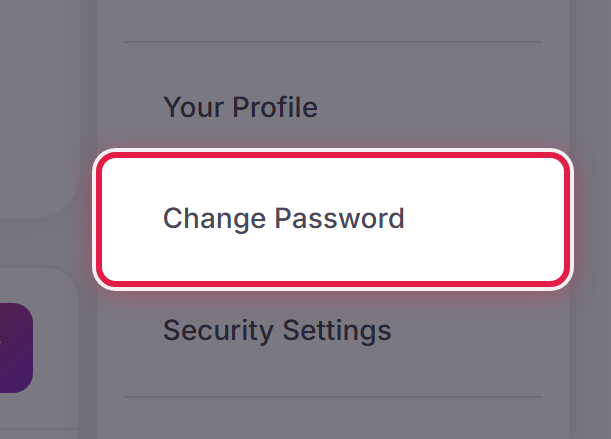
Open the account menu at the top right of any page and select Change Password.
Enter your current password, then your new one twice, and save.
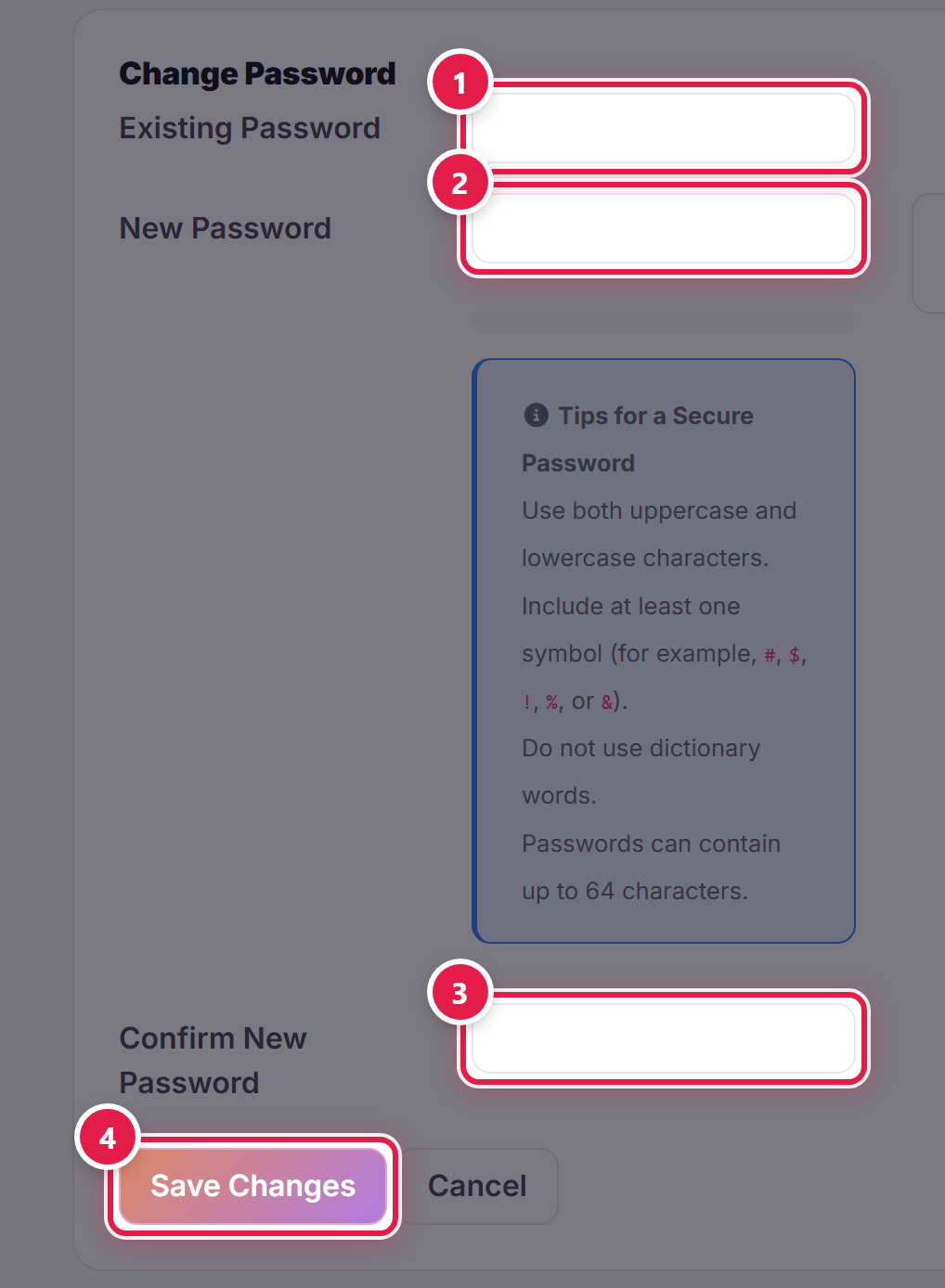
Choosing a good one
The form shows a strength meter as you type. Use a password you do not use anywhere else, and store it in a password manager rather than reusing it.
If you cannot sign in
Use the Forgot Password link on the sign-in page. We will email a reset link to the address on your account.
Once your password is set, we strongly recommend also turning on two-factor authentication.