Every backup you hold can be put back, downloaded, or removed. They are all on the Backups tab of the site.
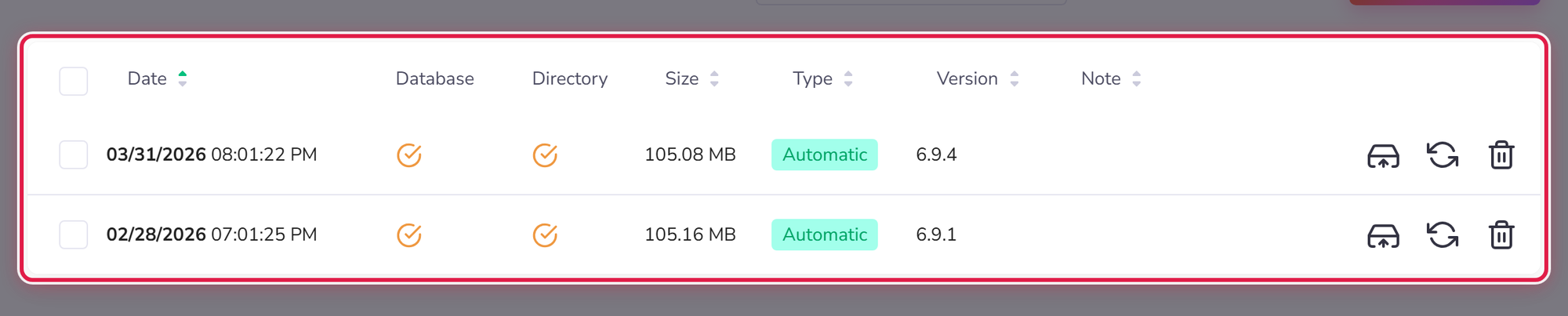
Each row shows when it was taken, whether it holds the files, the database or both, how large it is, whether it was automatic or one of yours, which WordPress version it holds, and any note you wrote.
Restoring
Find the backup you want by its date and note, and restore it.
Restoring replaces the site as it is now. Anything that has happened since that backup was taken — new posts, new orders, new comments, anything a customer did — is gone.
So before you restore, take a fresh backup first. That sounds odd when the site is broken, but it costs seconds and it means you can get back to the current state if the restore turns out not to be what you wanted. Restoring without one is the only genuinely irreversible step here.
Which one to pick
The newest backup from before the problem started. If you are not sure when that was, look at what changed: an update usually pins it down.
If you cannot work it out, ask us before you restore. We can look at what happened and when. That conversation is much easier before a restore than after one.
Downloading
You can download a backup and keep it yourself. Worth doing for a backup you particularly care about, because the ten-backup allowance means it will eventually be replaced. It is also how you take a copy of a site somewhere else.
Deleting
Backups can be removed individually or several at once. This is the fastest way to free disk space when your plan is filling up.
Before deleting, check the date on what you are keeping. Removing several at once is convenient and it is also how people accidentally delete the one they needed. If in doubt, download it first.