You can see and manage every plugin on a site without signing into WordPress.
Where
Open a site and select Plugins. The number beside the tab is how many need an update.
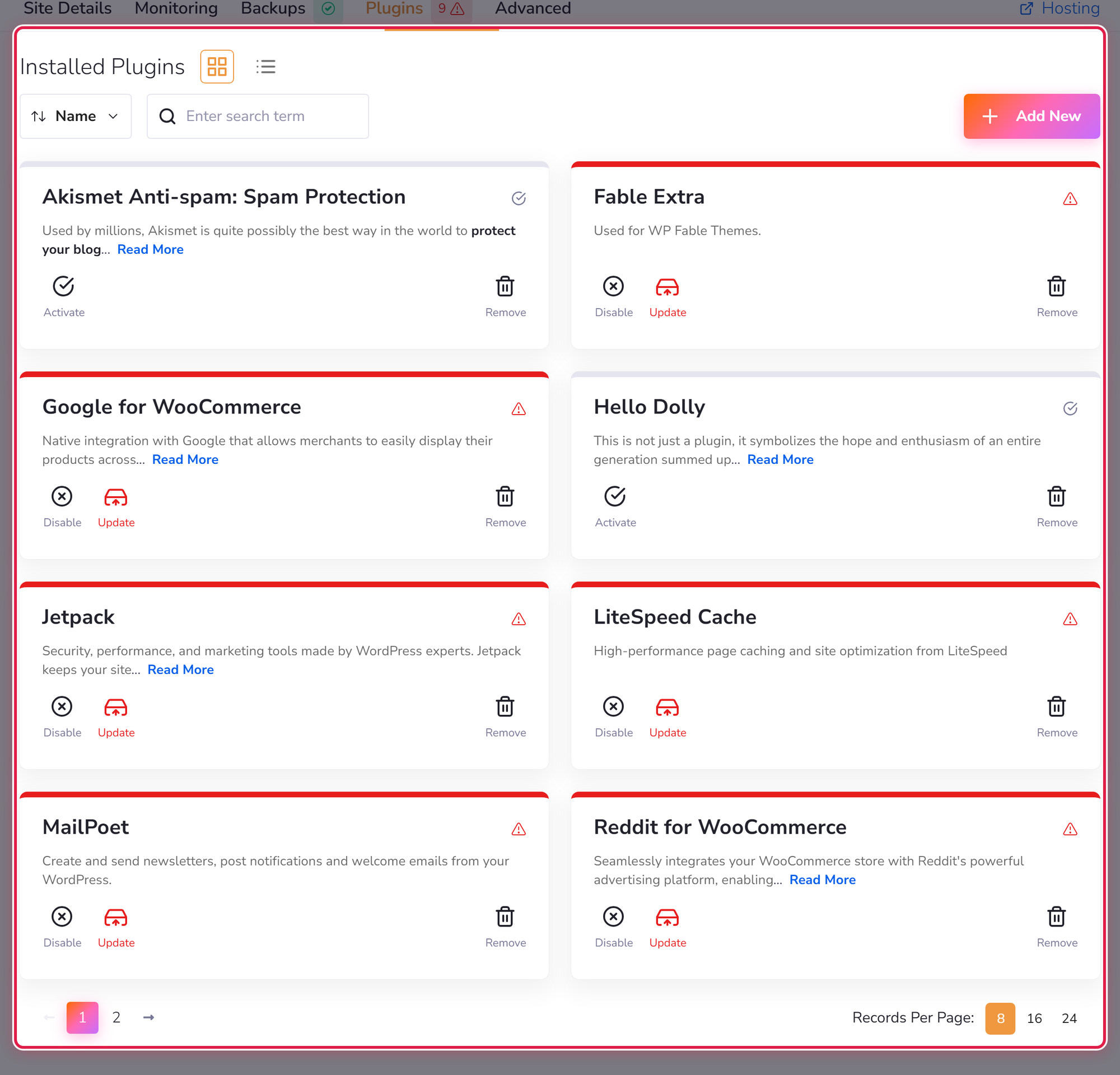
Each plugin can be activated, disabled, updated or removed from here.
Disable, or remove?
- Disable turns a plugin off but keeps it and its settings. This is what you want when testing whether a plugin is causing a problem.
- Remove deletes it. Its settings usually go too.
Finding what broke a site
If a site misbehaves after an update, disabling plugins one at a time is the fastest way to find the culprit. Do it on staging if the site is live and busy.
Fewer is better
Every plugin is code running on your site. Plugins you no longer use are worth removing rather than leaving disabled — it is less to keep updated and less to go wrong.